Disclaimer: This thread has been modified from its original version and recreated to eliminate the on-going talk regarding pirated versions of VCDS. Special thanks to 'grizzles', 'defunkt', and all those who have contributed prior.
This is a tutorials only thread on how to perform various VAG-COM modifications. Any post(s) pertaining to pirated versions of VCDS are deemed illegal under the Digital Millennium Copyright Act (DMCA) as confirmed by Universal v. Reimerdes.
What this section covers:
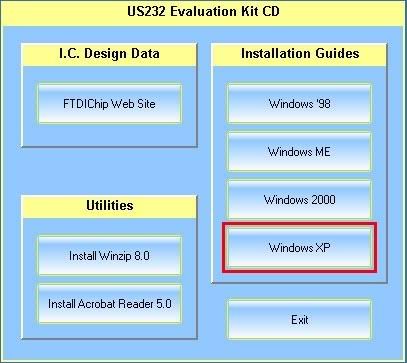
This tutorial assumes you already plugged in your cable and installed the necessary drivers from the supplied CD. If for some reason you don't have the necessary drivers, you may download them here.
Tools:
VAG-COM Cable
Windows OS Laptop w/ cable drivers installed and an open USB port
Time:
5 minutes
PART 1: SWITCHING COM PORTS
Step 1:
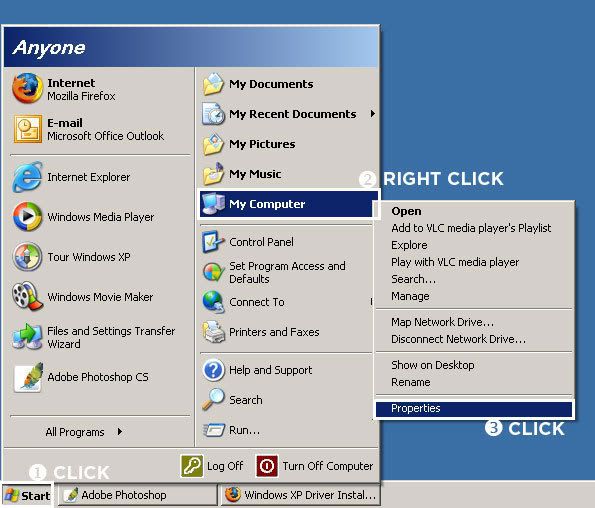
This tutorial assumes you already plugged in your cable and installed the necessary drivers from the supplied CD. Begin by CLICKING the "Start" button, RIGHT CLICKING the "My Computer" button, and finally CLICKING on "Properties". For those into using keyboard shortcuts, you can hit "Windows Key + Pause/Break" to get to the "System Properties".
Step 2:
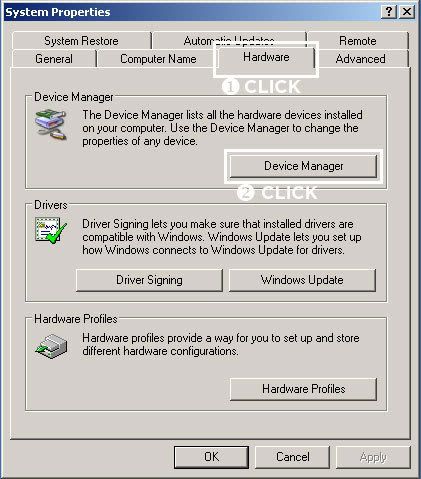
You should now see the "System Properties" window. CLICK on the "Hardware" tab, then CLICK on the "Device Manager".
Step 3:
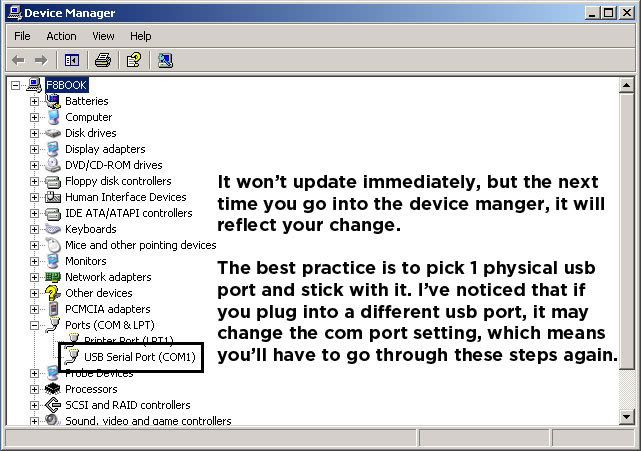
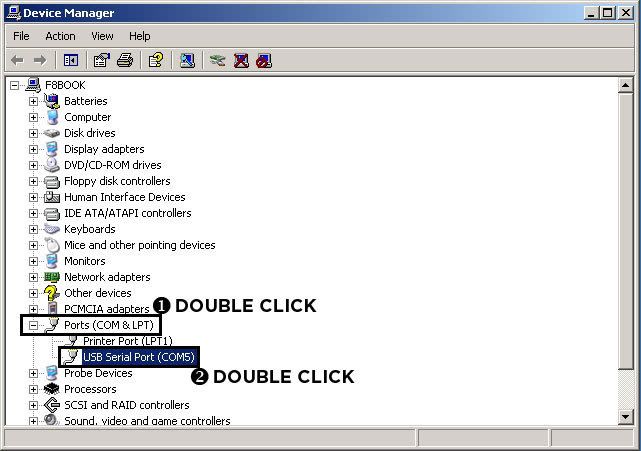
This will bring up the "Device Manager". This is an invaluable tool used check on the status of every piece of hardware connected to your machine. Scroll down until you see "Ports (COM & LPT)" and DOUBLE CLICK to open this section. Inside should be "USB Serial Port (COMX)". DOUBLE CLICK on this to bring up the "USB Serial Port (COMX) Properties".
Step 4:
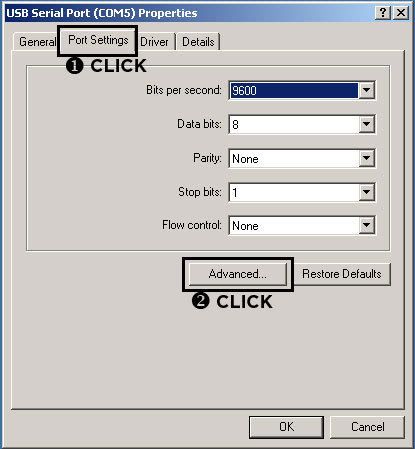
Now that you are in the "USB Serial Port (COMX) Properties", CLICK on the "Port Settings" tab and then CLICK on the "Advanced..." button.
Step 5:
This opens the "Advanced Stettings..." Start by CLICKING on the "COM Port Number:" drop down menu and select "COM1". If COM1 is "in use" select the next highest number, but it HAS to be in the range of COM1-4. Later we'll go into the VAG-COM software options and change it to what we picked here. Finish up by CLICKING on "OK" in the 2 windows.
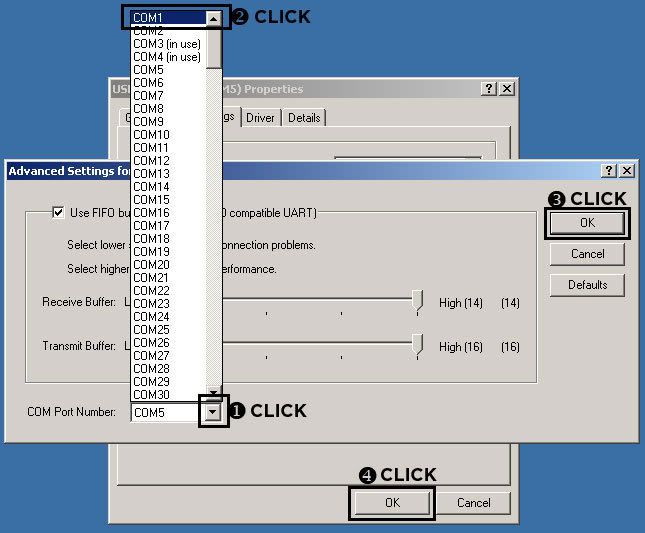
Note: The changes have been made to the COM Port, but I wanted to call attention to the fact that it may not reflect the changes in the Device Manager, until you close and open it again or refresh.
Also, If you plug the cable into another physical USB port, it may change the COM Port. If this is the case, simply repeat the steps.
Stokes|Moderator - PM me with any questions/concerns
What this section covers:
This section deals with VAG-COM "Program Options" and how to get the cable to be recognized by the stofware and the car. This tutorial assumes you already have been through PART 1 and have installed "VAG-COM Release 409.1S for MODERN SERIAL Interfaces". Ross-Tech explicitly says that this version will not work with USB interfaces, however the driver we installed takes care of that. (FYI: The cable we are using is basically a USB->Serial interface cable - very simple in design. The USB cable Ross-Tech is referring to is their HEX-USB+CAN interface, which is much more complex and includes CAN features as well as a built in dongle for the software.)
Tools:
VAG-COM Cable
Windows OS Laptop w/ cable drivers installed and an open USB port
VAG-COM Release 409.1-S for MODERN SERIAL Interfaces - Installed
Time:
5 minutes
PART 2: VAG-COM PROGRAM OPTIONS
Step 1:
Take your laptop to your car, plug the USB side into your laptop, and the OBDII side into the car. The OBDII port is located under the steering wheel by the hood release. Turn the ignition ON however the car does not have to be running. Make sure you've already been through part 1.
Step 2:
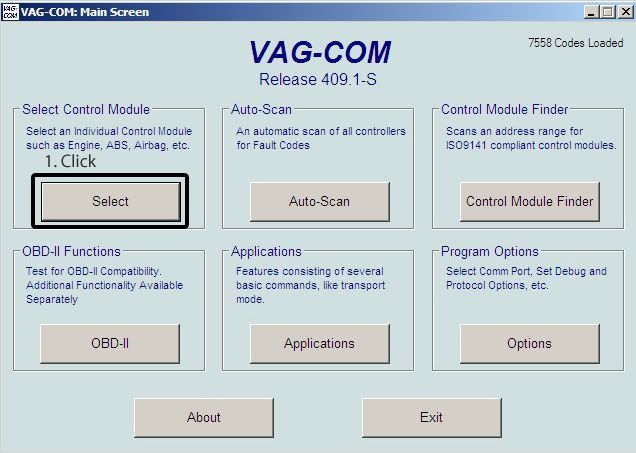
When you open the VAG-COM software, you will be presented with the "Main Screen". The first time you open it, all of the buttons will be grayed out except the [Options] button.
Step 3:
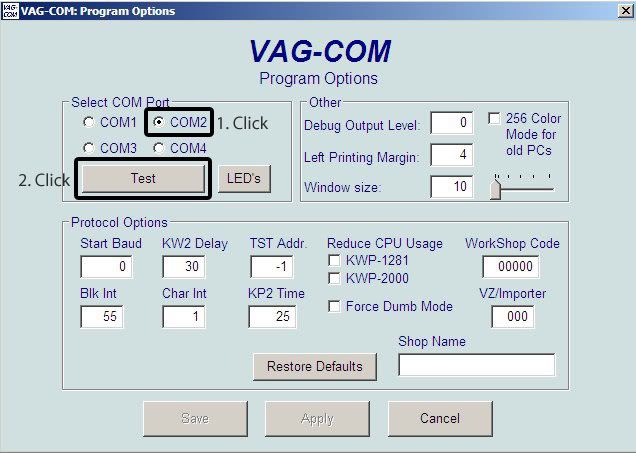
Here we see that you can select COM Ports 1-4. Chang this to the COM port you have selected in PART 1 and Click the [Test] button. Note: Part 1 has COM1 selected and the image above has COM2 selected due to me being too lazy to recapture the images for Part 1.
Step 4:
If everything went smoothly, you'll see this pop up: "Port Status: OK, Interface: Found!". Congratulations! Your laptop is connected to your car and you may begin modding. Click the [Save] button to save your changes. The next time you open VAG-COM your settings will be there.
If you see something other than this consult the Troubleshooting Section.
TROUBLESHOOTING
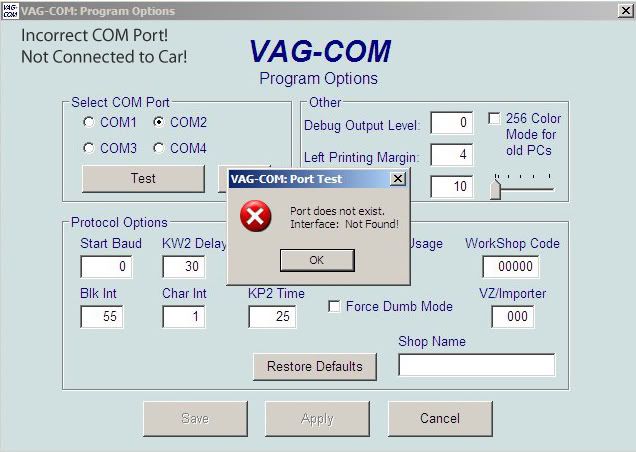
1) Port does not exist. Interface: Not Found!
If you see this error, check to see if the cable is seated properly in the laptop and the OBDII port. Also ensure you are using the same COM port in parts 1 and 2. If you still get this error, you'll have to repeat PART 1.
2) Port Status: OK, Interface: Not Found! If you see this error, check to see if the cable is seated properly in the OBDII port on the car. If it is connected properly the connector will have a glowing blue LED as feedback. Also make sure that the ignition is ON.
Stokes|Moderator - PM me with any questions/concerns
What this section covers:
This section deals with VAG-COM software control module recording procedures and details the basic mods you can do with this cable including seatbelt chime, remote windows, 1-click locks, and euro headlights. This tutorial assumes you already have been through PART 1 and PART 2 which means you have a cable that is communicating with the VAG-COM software and your car.
Tools:
VAG-COM Cable
Windows OS Laptop w/ cable drivers installed and an open USB port
VAG-COM Release 409.1-S for MODERN SERIAL Interfaces - Installed
Time:
5 minutes
PART 3: VAG-COM CONTROL MODULE RECORDING
Step 1:
Take your laptop to your car, plug the USB side into your laptop, and the OBDII side into the car. The OBDII port is located under the steering wheel by the hood release. Turn the ignition ON however the car does not have to be running. Make sure you've already been through PART 1 and PART 2.
Step 2:
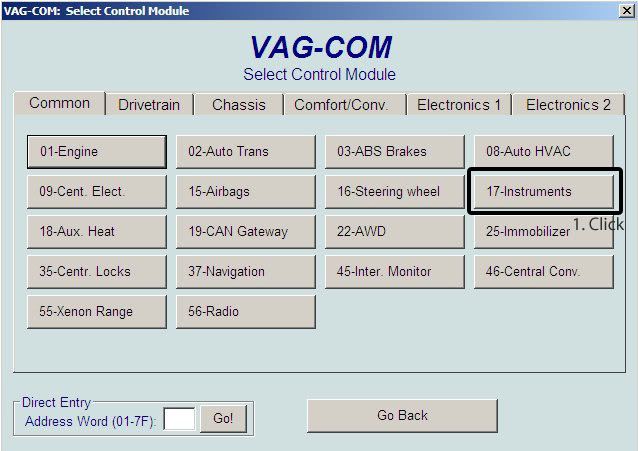
When you open the VAG-COM software, you will be presented with the "Main Screen". Start by click on the [Select] button. If the [Select] button is grayed out you will need to revisit PART 2. You will now see the "Select Control Module" screen frequently to do our various mods.
THE INFAMOUS SEATBELT CHIME
Step 1: Click on the [17-Instruments] button.
Step 2:
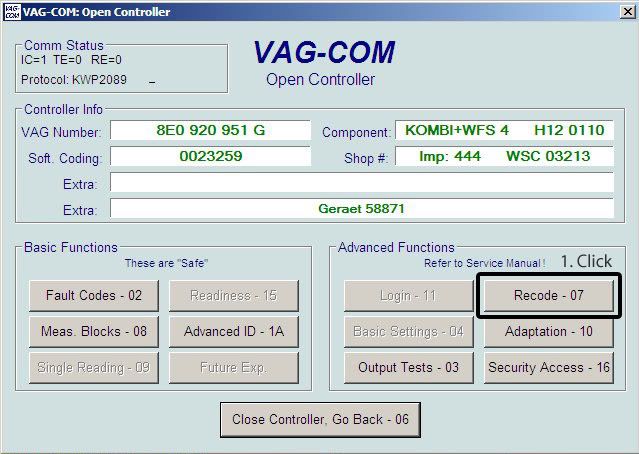
Click on the [Recode - 07] button.
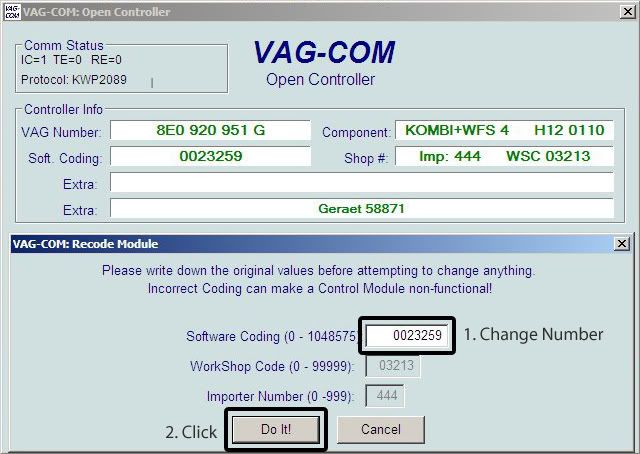
Step 3: Change the Software Coding number to "0023259" and click the [Do It!] button to recode this module. If you want to revert back to the original coding use "0023261"
Note: While this gets rid of the seatbelt chime, it does not get rid of the door open warning. However, if you leave your door open long enough it will eventually stop now.
REMOTE WINDOWS + 1 CLICK LOCKS
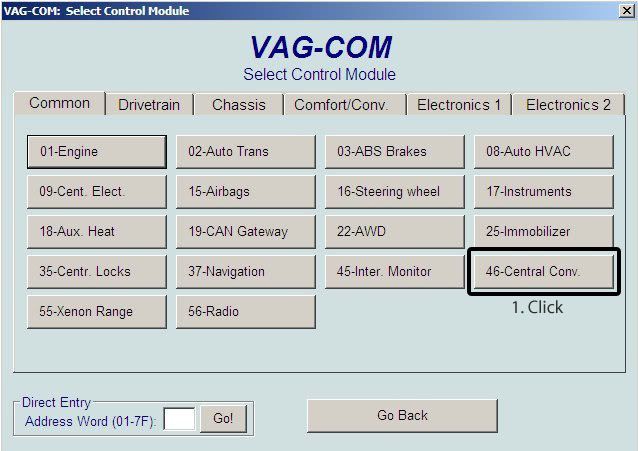
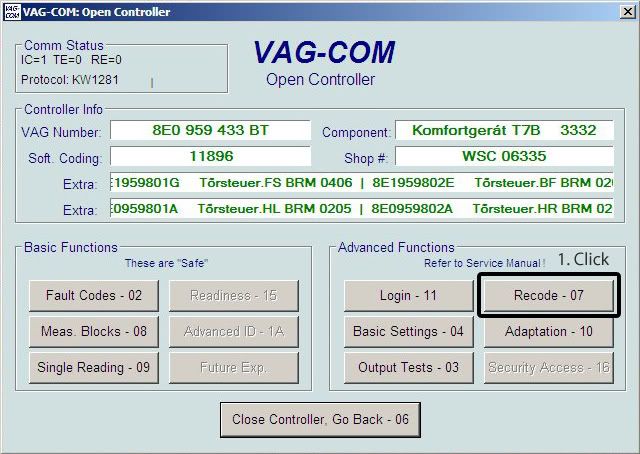
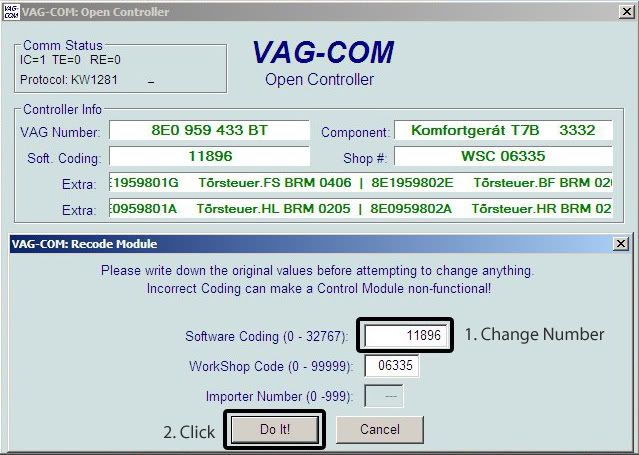
Step 1: Click on the [46-Central Conv.] button.
Step 2: Click on the [Recode - 07] button.
Step 3: Change the Software Coding number to "11896" and click [Do It!] button to recode this module. If you want to enable remote windows without enabling 1 click locks use "11884". If you want to revert back to the original coding use "11820".
Note: To roll your window UP from your remote, simply hold the "Lock" button down. To roll your windows DOWN from your remote, simply hold the "Unlock" button down.
EURO HEADLIGHTS (ambers off unless turn signal is on, also enables high beams + fogs)
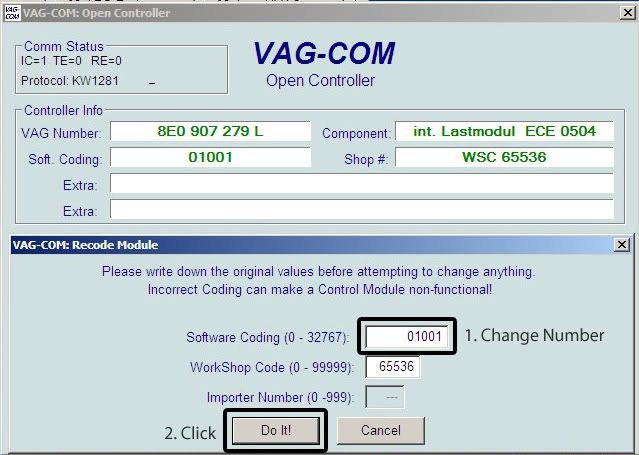
Step 1: Click on the [09-Cent. Elect.] button.
Step 2:
Click on the [Recode - 07] button.
Step 3a (XENON): Change the Software Coding to "01021" and click the [Do It!] button to recode this module. If you want to revert back to the original coding, use "01023".
Step 3b (HALOGEN):
Change the Software Coding to "01001" and click the [Do It!] button to recode the module. If you want to revert back to the original coding, use "01003".
APPENDIX 1 - Code Listing from moroisanorange:
Note: I have only performed the aforementioned tasks, any other codes listed below are personally uncharted territory.
Note: All codes below are for the B7 platform. B6 platform codes *may* be different, depending on the model year.
Note: In all codes below, #=existing digit, not relevant to mod in discussion, DO NOT change.
Euro Headlights & DRL
Module 09 (Central Electrical), recode to ###XY, where:
X = DRL
0 – Halogen without DRL
1 – Halogen with DRL
2 – Bi-Xenon with DRL
3 – Bi-Xenon without DRL
4 – Bi-Xenon with DRL / tail light / license plate light
Y = Locale
1 – Rest of World / Nordic Countries / Denmark / Croatia / Baltic Countries with Bi-Xenon
2 – Nordic Countries / Denmark / Croatia / Baltic Countries without Bi-Xenon
3 – USA / Canada with Bi-Xenon
4 – Canada without Bi-Xenon
5 – Special Vehicles
Note: This mod tested on bi-xenon cars only; halogen cars may not work as intended.
Disable Seatbelt Chime
Module 17 (Instruments), recode to ###Z1, where:
Z = Warning Type
0 – Disabled
1 – Europe NCAP – Visual indicator always on, audio chime for 91 seconds active
2 – USA & Canada NAR Old – Visual indicator & audio chime for 6 seconds at startup
3 – USA & Canada NAR New – Visual indicator on, audio chime every 30 seconds
4 – Europe NCAP including front passenger seat
5 – USA & Canada NAR Old including front passenger seat
6 – USA & Canada NAR New including front passenger seat (North American B7 default)
Note: All Module 17 recodes can be combined and done together. e.g. To do both above, recode to ??#Z1
Remote Window Functions
Module 46 (Central Convienence), recode to [existing value + 64]
1-Click Unlock All Doors
Module 46 (Central Convienence), recode to [existing value - 4]
**Bonus 1** Enable Dashboard Headlight Indicator
Module 17 (Instruments), recode to ??###, where ?? = [existing 2 digit value - 2]
**Bonus 2** Trip Computer Fuel Consumption Correction Factor
Module 17 (Instruments), Adaptation channel 03
- Affects: Instantaneous Fuel Consumption, Average Fuel Consumption, Range, & Distance to Empty
- Default: 100%
- Range of values: 85 – 115%
**Bonus 3** Disable Auto-Lock
Module 46 (Central Convienence), recode to [existing value - 32]
Note: All Module 46 recodes can be combined and done together. e.g. To do all 3 above, recode to [existing value + 64 - 4 + 32]
Stokes|Moderator - PM me with any questions/concerns
I would love an explanation as to what Vag-Com conversations are acceptable and which ones are not on this forum. Ross-Tech provides VCDS-Lite (freeware), which performs most of these mods with dumb interfaces, on its website. I am confused as to why some of my posts have been removed when asking about VCDS-Lite with a dumb interface.
It's true that Ross-Tech's website provided the end-user to directly download VCDS-Lite at one point. However, VAG-COM version 409 is no longer supported or available from their website for download. Since re-distribution of any of Ross-Tech's software is explicitly prohibited, there is no legitimate way to get version 409. Because VCDS-Lite is a substantially improved version, those who wish to use the various "cracks" that were developed for earlier versions will run into a few problems.
Basically, posts with links to "warez" are not allowed.
Stokes|Moderator - PM me with any questions/concerns
I would love an explanation as to what Vag-Com conversations are acceptable and which ones are not on this forum. Ross-Tech provides VCDS-Lite (freeware), which performs most of these mods with dumb interfaces, on its website. I am confused as to why some of my posts have been removed when asking about VCDS-Lite with a dumb interface.
If I remember correctly what had happened was that someone found a Chinese distributor that was selling a version of cable that VCDS-Lite saw as a non-dumb interface which unlocked the blocked content which basically made the software the same as the full blown version. As long as that cable and its capabilities don't come up our conversations should be "legal".
It's true that Ross-Tech's website provided the end-user to directly download VCDS-Lite at one point. However, VAG-COM version 409 is no longer supported or available from their website for download. Since re-distribution of any of Ross-Tech's software is explicitly prohibited, there is no legitimate way to get version 409. Because VCDS-Lite is a substantially improved version, those who wish to use the various "cracks" that were developed for earlier versions will run into a few problems.
Basically, posts with links to "warez" are not allowed.
This clarifies things better. Thanks ... and thanks to randyp1234 for his contribution.
If I remember correctly what had happened was that someone found a Chinese distributor that was selling a version of cable that VCDS-Lite saw as a non-dumb interface which unlocked the blocked content which basically made the software the same as the full blown version. As long as that cable and its capabilities don't come up our conversations should be "legal".
It was the multiple posts of links to pirated versions of VCDS 1.0/1.1, 409.1, etc. Any post(s) pertaining links to the download of Ross-Tech's software, other than their website or Authorized distributors, are strictly prohibited.
Stokes|Moderator - PM me with any questions/concerns
I did the seatbelt chime and remote windows yesterday. I had half of tank of gas and after I did this gas dropped to quarter and gas light came on. I searched and found this
"I just posted this in the other thread:
My gas display did the same thing when I entered the code that was posted for the Seatbelt Chime (0023259) instead of calculating what it should be. My original code was 0022261 and not the 0023261. When I corrected it the fuel display issue went away. Should be 0022259. "
Here is the link to the original thread - is the last post.
one question here, im going to change my headlights in 2 days when i get my OEM bi-Xenon headlights.
my original headlights are halogen.
im going to use the kufatec module for my headlights.
is this the code i need to change?? Step 3a (XENON):
Change the Software Coding to "01021" and click the [Do It!] button to recode this module
And one other question can i still use the headlights even if the code does not change? what ive read is that the code that needed to be changed is so that the curve lights work?
thank you
I got all the way through the install and port select (using COM3) and get te OK! pop-up. Then I click on select controll mondule, click 17, and it attemps to connect, but never does. It keeps trying to connect, but never does.
I don't think you can connect on this module since, I think, it was coded!! I've tried to connect on the 55 to up my headlight a little bit, but need a registered version!!
I got all the way through the install and port select (using COM3) and get te OK! pop-up. Then I click on select controll mondule, click 17, and it attemps to connect, but never does. It keeps trying to connect, but never does.
Restart your computer, turn off your car, turn your car back on, ensure you have good connections with your cables, and ensure you get the proper OK pop up. You should be able to access module 17 with VCDS-Lite.
You should be able to access any module your car has. But I found that the $20 cable wasn't very reliable at connecting, so I ended up getting the real one (from Europa, in fact) which works much better.
2007 A4 2.0T CVT Cabriolet S-Line Phantom Black
APR, K&N air filter, Podi boost gauge, chrome-stripped grille, RS4 RSB
Smoked side reflectors & markers, smartTOP, Eibach Pro-Kit, 12F/15R spacers, ER SMIC
Xenon match DRLs, HID fogs, city w/ fogs, S4 mirrors, red LED interior, CC, 034 HFC + Magnaflow 14829
With 4.09 you can't acces everything. I bought a cable with the 10.6 software. This software works with Win 7 64bit and can access all VAG cars up to 2011.
Now I can do everything the dealer does except milage and key learning.
I don't understand why everybody is buying the $20 cable instead of the $50 dollar 10.6 cable with no restrictions.
It could be because some of us are comfortable only being able to perform the several mods listed above for around $12 delivered with the VCDS-Lite freeware.
I passed a b7 (so i thought at first glance) running fogs with the parking lights only any ideas?
Can't do this with VAG-COM, have to do some minor wiring changes to the headlight switch. I don't have the link handy but I am pretty sure Eddie Man over on AW was the one who wrote up the tutorial
could someone help me with my problem? i got my OEM Bi-Xenon lights today but im afraid that i will do something wrong with the coding and destroy something.
im using Eu car and live in Sweden.
coudl somone tell em wich codes needs to be changed to what?
im not going to use DRL only my Xenon HID foglights as im doing it now.
With 4.09 you can't acces everything. I bought a cable with the 10.6 software. This software works with Win 7 64bit and can access all VAG cars up to 2011.
Now I can do everything the dealer does except milage and key learning.
I don't understand why everybody is buying the $20 cable instead of the $50 dollar 10.6 cable with no restrictions.
Careful - talking about certain cables/software that does everything unrestricted is what got the other thread yanked.
Does anyone know how to change the service interval mileage with vag-com? After I reset my service interval notification it will re-appear after only 300 miles of driving and say "service in 700 miles". It has been doing this since I bought the car in 2009 and I just reset it every time but is very damn annoying to have to reset it every couple of weeks.
If I remember correctly what had happened was that someone found a Chinese distributor that was selling a version of cable that VCDS-Lite saw as a non-dumb interface which unlocked the blocked content which basically made the software the same as the full blown version.
I have "that" cable!
vizi
05.5 B7 A4 6sp AWD Quartz Gray 173,000mi I like to drive!
Car:Custom JRP Mani & DP, GT3076, FWD to AWD conversion, IE 144/20,Wossner Pistons 83.5mm 9.2:1Cr, CM FX400, Ported Head Ferrea valves, Eurojet VC, EJ S3 Dv Flange, Custom STASIS Exhaust, Precision 600hp FMIC, RS4 injectors, Tial 38mm, APR HPFP, 034 SD mounts, Apikol Rear Diff, RS4 Sway, APR Snub Mount, DO 4 port w/m direct injection, HPFPUpgrade 142bar fuel relief valve
Absolute Automotive Tuned to 373+awhp (Corrected)
Bookmarks